Configure Single Sign-on
Single Sign-on is managed in the Single Sign-on Settings page.
|
|
 PREREQUISITES:
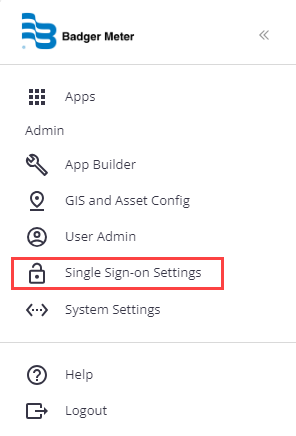
- Click the menu icon to open the menu.
- Click Single Sign-on Settings.
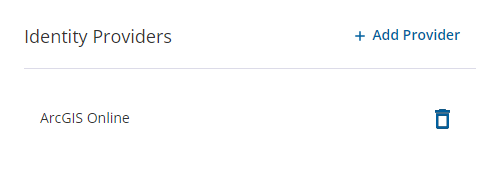
- Click Add Provider on the Identity Providers panel. Existing providers are listed in this panel.
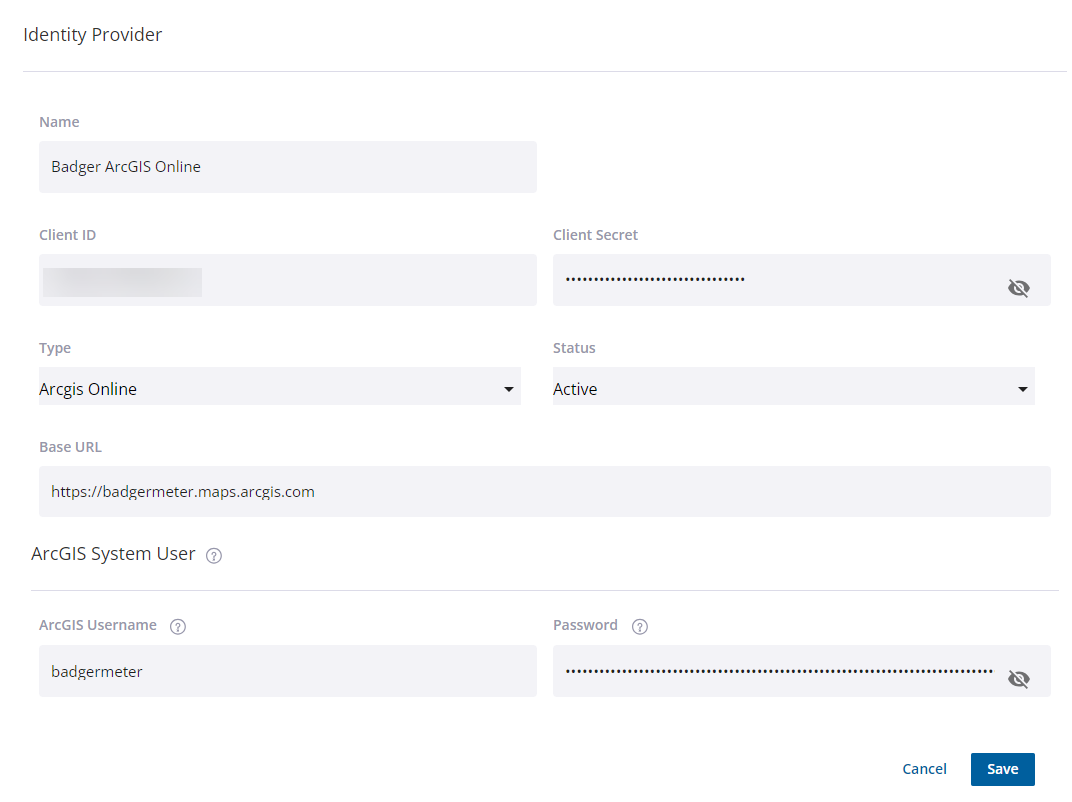
- In the Identity Provider panel that opens, enter the Name of the provider. This is the name that will appear on the login screen.
- In the Client ID field, enter the App ID. See Create the Application in ArcGIS Online or Portal for ArcGIS for more information.
- In the Client Secret field, enter the App Secret. See Create the Application in ArcGIS Online or Portal for ArcGIS for more information.
- From the Type drop-down list, select either ArcGIS Online or ArcGIS Enterprise.
- Select the Active check box to mark the client as active.
- For the Base URL, enter the URL to access your organization's ArcGIS Online or Portal for ArcGIS site. This is the same site you used to complete the steps in Create the Application in ArcGIS Online or Portal for ArcGIS. If you are not sure of the URL, speak to your GIS administrator.
- In the Remote Monitoring ArcGIS System User section, enter the ArcGIS Username and Password.
 NOTE: The ArcGIS System User credentials are used by Remote Monitoring to generate the mobile cache for offline use by theRemote Monitoring Mobile App. It is also required if Remote Monitoring is configured to update the GIS data with KPIs from theRemote Monitoring ArcGIS Connector.
- Click Save.
 IMPORTANT: Once Single Sign-on has been configured, AGOL or ArcGIS Enterprise or Portal users can log in to Remote Monitoring with their ArcGIS Identity. ARemote Monitoring user account will be created automatically, but it will not have any permissions until the administrator configures them. See Manage User Accounts for more information. Administrators can also add and preconfigure user accounts in Remote Monitoring before the user logs in using their ArcGIS credentials. Their assigned Remote Monitoring username must match their ArcGIS username exactly.
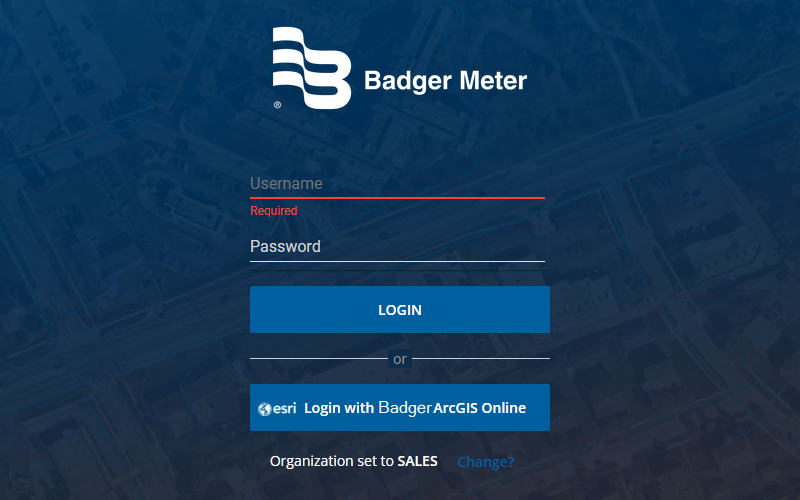
The next time you log out, the Remote Monitoring log in screen will show options to log in using your configured provider(s).