Configure the Remote Monitoring App with GIS Data
You can create and manage apps using the Remote Monitoring App Builder. These apps can be configured to include your existing business processes that can be targeted to specific users. The apps can contain specific forms and workflow templates that have previously been created. Users can be given permissions to these apps and can use them for data collection and managing work activities.
Remote Monitoring admin users can edit the Badger Meter Remote Monitoring app to configure it with ArcGIS feature services, web maps, and dashboards.
 PREREQUISITES: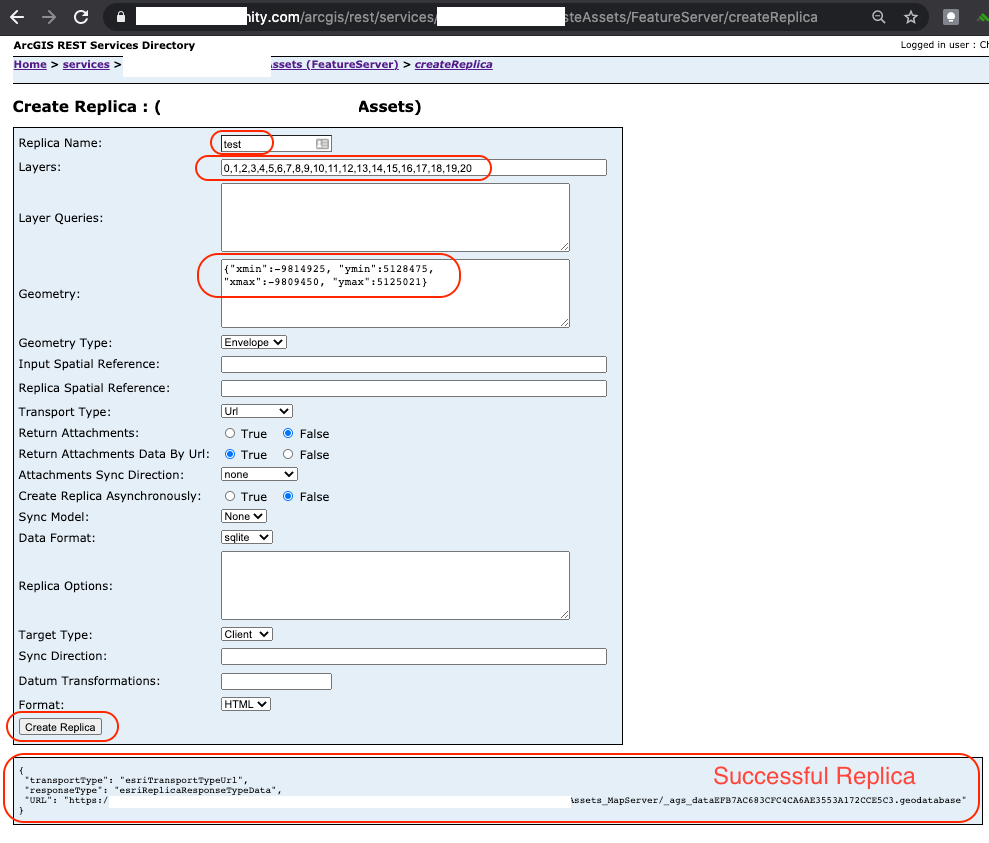
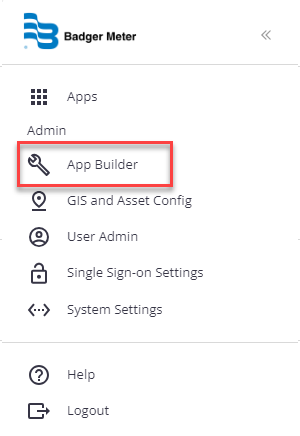
- Click the menu icon to open the menu.

- Click App Builder.
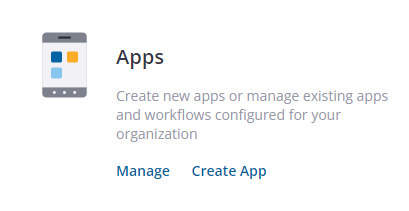
- On the Apps panel, click Manage.
Badger Meter Remote Monitoring is deployed with an existing app for Remote Monitoring. This app can be edited to fit your organization.
- Click the edit icon to edit the app.

 General
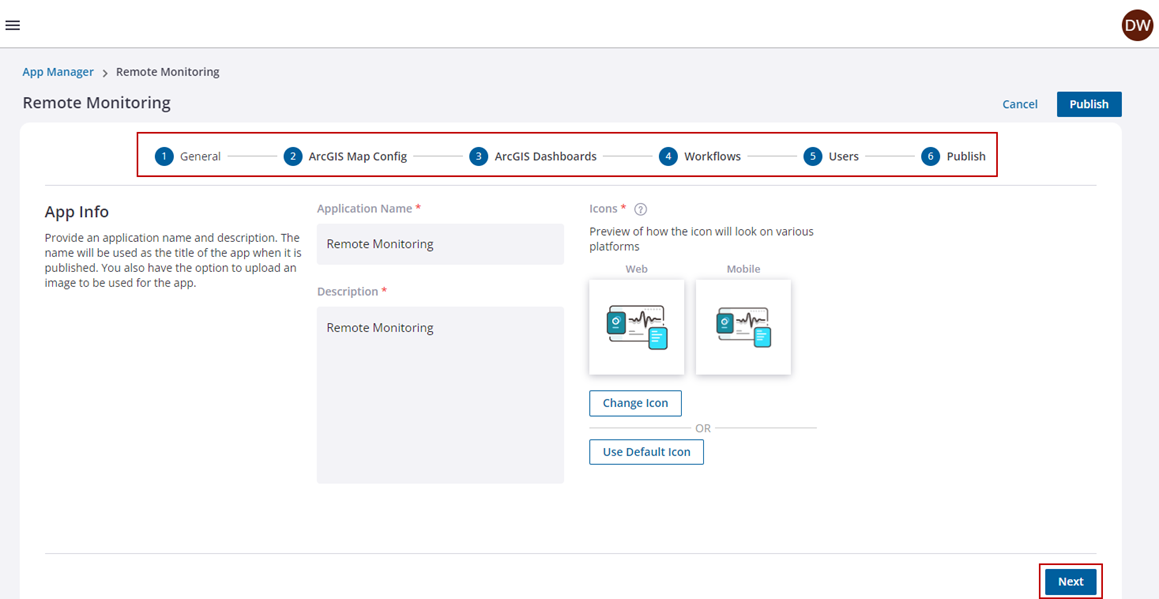
The General section is used to configure the app name, description, and icon.
- On the General tab, edit the Application Name and add a Description of the app.
- Click Change Icon to change the icon you want to use for the app, or click Use Default Icon to use the default icon.
If you change the image for the icon, it must meet these requirements:
- .png image
- 90 x 90 pixel
- 1 MB or less in size
- Transparent background
- Click ArcGIS Map Config to move to the next section, or click Next.
ArcGIS Map Config
The ArcGIS Map Config section is used to define which map will appear in this app.
- On the ArcGIS Map Config section, select the web map you want to use for the app or search for it in the Search ArcGIS Content field. Please ensure that the web map has been shared in your ArcGIS organization or with ArcGIS Groups to ensure that all users who require access to the Remote Monitoring app also have access to this web map.
The web maps displayed are all the web maps within your ArcGIS Online or Portal for ArcGIS organization.
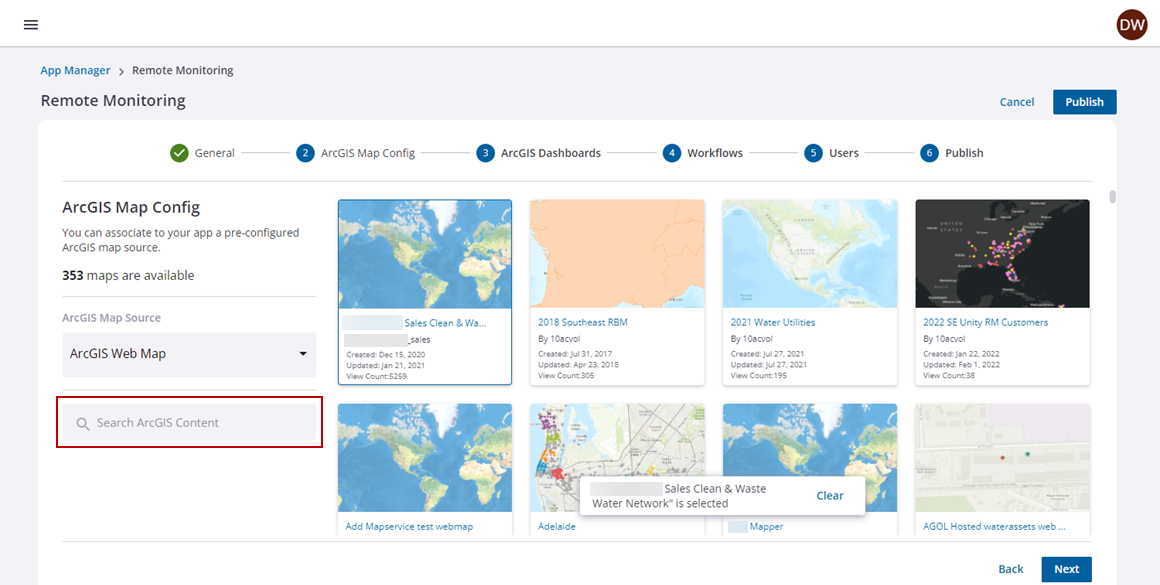
- Click ArcGIS Dashboards to move to the next tab, or click Next.
ArcGIS Dashboards
The ArcGIS Dashboards section is used to associate dashboards from ArcGIS Online or Portal for ArcGIS with the app. The Badger Meter Remote Monitoring ArcGIS Connector can be used to create ArcGIS Dashboards containing remote monitoring data and KPIs.
- If you have ArcGIS dashboards configured in ArcGIS Online or Portal for ArcGIS that you want to associate to the Remote Monitoring app, select the dashboard you want to use for the app or search for it in the Search Dashboards field.
 NOTE: You can associate one or more ArcGIS dashboards to the Remote Monitoring app.
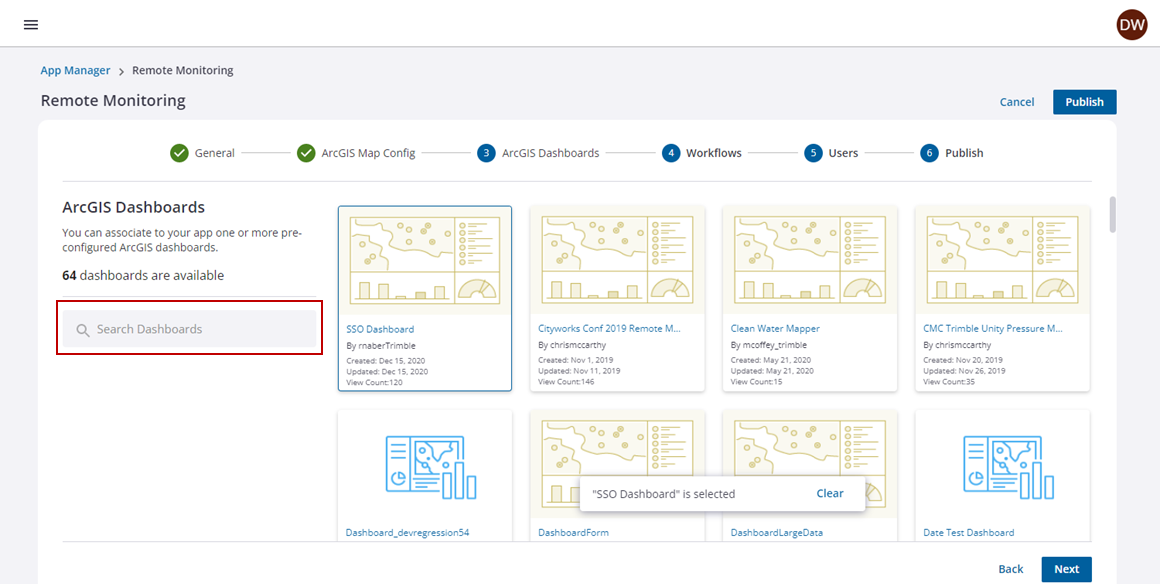
- Click Users to move to the next tab, or click Next.
Users
The Users section is used to determine which users will have access to this app.
- Select the check box next to the users who are authorized to access this app.
NOTE: You can also manage app user permissions from the User admin screen.
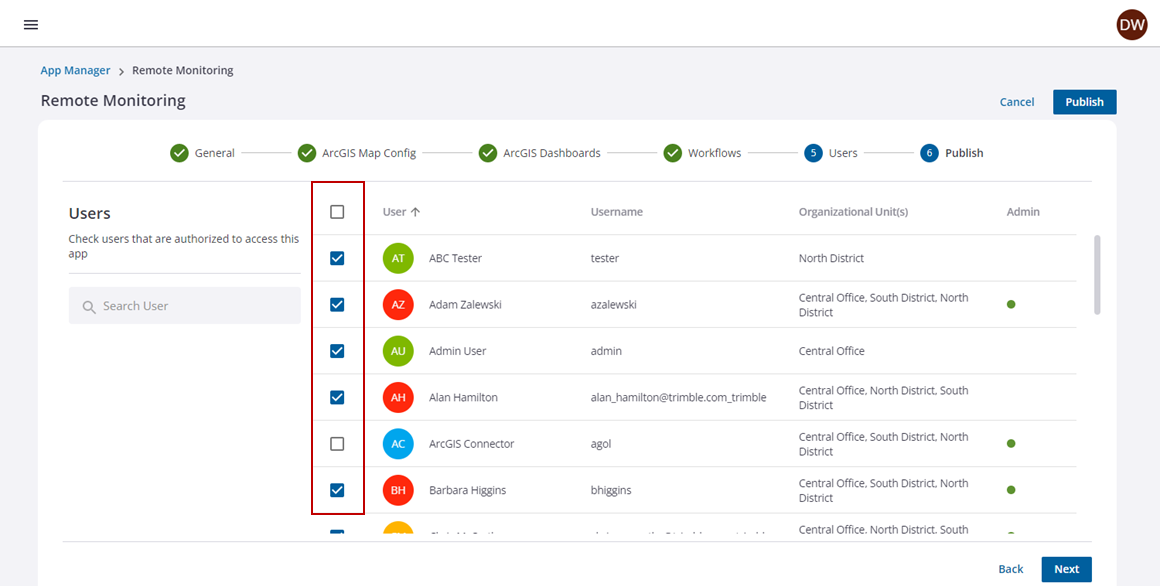
- Click Publish to move to the next tab, or click Next.
Publish
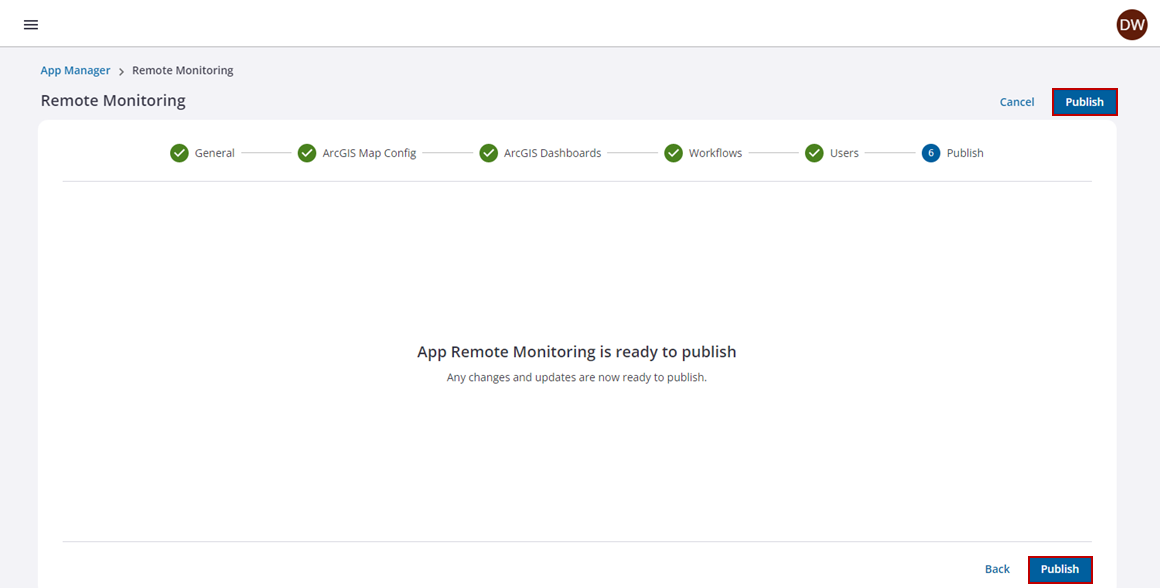
All the updates and changes made in the app are now ready to publish.
NOTE: If the ArcGIS web map associated to a published Remote Monitoring app is updated to include additional GIS layers, the app needs to be republished by editing the app and clicking Publish.
- Click Publish.